
VBA colors
0. Quick guide to the RGB color model
In this module:
- RGB color circles
- ColorIndex property - 56 colours, and VBA ColorConstants
- RGB and decimal color values, plus conversion
- Color property
The RGB color model adds combinations of Red, Green, and Blue to produce various colours. Each component is an integer value 0 to 255. The RGB colors with intersection overlap is demonstrated in figure 1.
1. RGB colors
1.1 RGB circles with additive colour mixing
Three RGB circles with colour mixing - returns 7 colors.
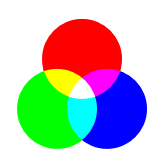
With the inclusion of black (no colour), the eight colours are:
- Black: RGB(0,0,0)
- White: RGB(255,255,255)
- Red: RGB(255,0,0)
- Green: RGB(0,255,0)
- Blue: RGB(0,0,255)
- Yellow: RGB(255,255,0)
- Magenta: RGB(255,0,255)
- Cyan: RGB(0,255,255)
1.2 RGB circles - production code
Using web browser CSS and Scalable Vector Graphics (SVG)
Code for CSS style and Scalable Vector Graphics (SVG) used to produce the RGB circles in figure 1
2. VBA ColorIndex property
Syntax: expression.ColorIndex = value
where value is an element from the integer series 1,2, …, 56. Special values include xlColorIndexAutomatic (-4105) and xlColorIndexNone (-4142).
Examples of the ColorIndex property:
xlRange.Value = "excel"xlRange.Interior.ColorIndex = 48xlRange.Font.ColorIndex = 20xlRange.Borders.ColorIndex = 3xlRange.Characters(1, 2).Font.ColorIndex = 6
2.1 The 56 colours of ColorIndex
Colours 2 to 8 are red, green, and blue with additive mixing. The colours 9 to 56 are various combinations of red, green and blue with RGB values: 0, 51, 102, 128, 150, 153, 192, 204, and 255 (figure 2).
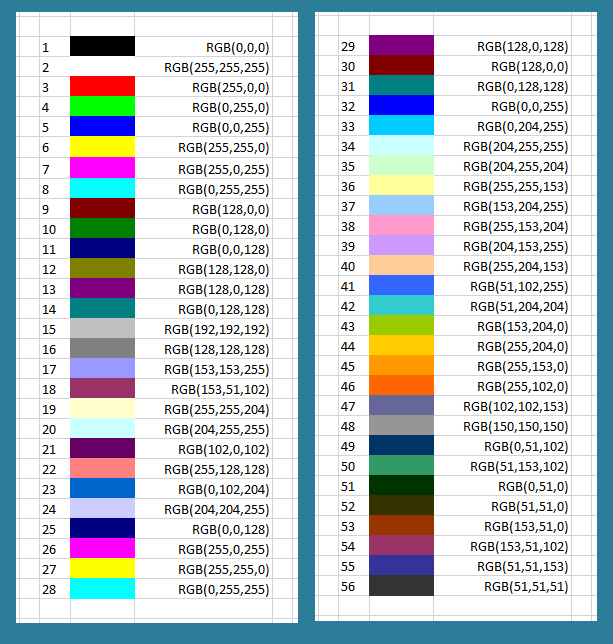
The WS range in figure 2 was printed from the ColIndx2wWS procedure in code 1.
Code 1: Sub
ColIndx2WS procedure prints ColorIndex to WS (see figure 2)
Sub ColIndx2WS()
' Requires xlfDec2RGB(ColDec) function
Dim i As Integer
Dim AC As Range: Set AC = ActiveCell

    For i = 1 To 56
        AC(i, 1) = i
        AC(i, 1).HorizontalAlignment = xlLeft
        AC(i, 2).Interior.ColorIndex = i
        AC(i, 3).Value = "RGB(" & xlfDec2RGB(AC(i, 2).Interior.Color) & ")"     ' see code ...
        AC(i, 3).HorizontalAlignment = xlRight
    Next i
    AC(i, 3).ColumnWidth = 19
End Sub
The colour table can also be printed as a 7 by 8 array (code 2)
Code 2: Sub
ColIndx2WSarraS procedure prints ColorIndex to WS array (7 rows by 8 columns)
Sub ColIndx2WSarray()
Const TLC As String = "B2"      ' top left cell
Dim i As Integer, j As Integer
Dim Col As Integer, Val As Integer

    With Range(TLC)
    For i = 1 To 7
        For j = 1 To 8
            Col = i * j
            Val = Val + 1
            .Offset(i - 1, j - 1).Interior.ColorIndex = Col
            .Offset(i - 1, j - 1).Value = Val
            Select Case Col
                Case 1, 5, 9 To 14, 16, 18, 21, 23, 25, 29, 30, 32, 41, 47 To 49, 51 To 56
                    .Offset(i - 1, j - 1).Font.ColorIndex = 2
                Case Else
                    .Offset(i - 1, j - 1).Font.ColorIndex = 1
            End Select
        Next j
    Next i
        .Resize(7, 8).ColumnWidth = 5
        .Resize(7, 8).RowHeight = 20
    End With

End Sub
Ten of the ColorIndex colours are duplicate pairs: Blue 5 and 32 ; Yellow 6 and 27 ; Pink 7 and 26 ; Turquoise 8 and 28 ; Dark Red 9 and 30 ; Dark Blue 11 and 25 ; Violet 13 and 29 ; Teal 14 and 31 ; [No name] 18 and 54 ; and [No name] 20 and 34 . Leaving only 46 unique colours.
2.2 ColorConstants
The 8 colours listed in section 1.1 have name equivalents listed as members of the VBA ColorConstants class in the decimal colour system. The ColorConstants Auto List drop down is shown in figure 4.
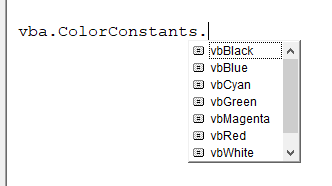
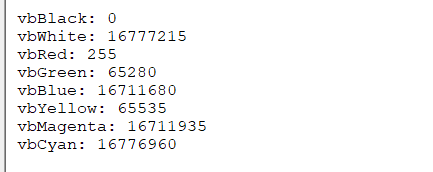
Code 3 prints a list of the ColorConstants numerical values to the immediate window (figure 5).
Code 3: Sub
ColConst procedure
Sub ColConst()
Dim i As Integer
Dim ColArrVal As Variant
Dim ColArrLbl As Variant

    ColArrVal = Array(vbBlack, vbWhite, vbRed, vbGreen, vbBlue, vbYellow, vbMagenta, vbCyan)
    ColArrLbl = Array("vbBlack", "vbWhite", "vbRed", "vbGreen", "vbBlue", "vbYellow", "vbMagenta", "vbCyan")

    For i = LBound(ColArrVal) To UBound(ColArrVal)
        Debug.Print ColArrLbl(i) & ": " & ColArrVal(i)
    Next i

End Sub
The immediate window with output from line 69
3. Decimal values of colours
3.1 RGB to positive decimal
To convert RGB to decimal , the relationship is \(C_d = R * 256 ^ 0 + (G * 256 ^ 1) + (B * 256 ^ 2)\). See code 4.
Code 4: Function
xlfRGB2DecX converts RGB values to decimal. Includes test routine
Function xlfRGB2DecX(Red As Integer, Green As Integer, Blue As Integer) As Long
    xlfRGB2DecX = Red * 256 ^ 0 + Green * 256 ^ 1 + Blue * 256 ^ 2
End Function

' ===========================
Function xlfRGB2DecY(Red As Integer, Green As Integer, Blue As Integer) As Long
    xlfRGB2DecY = RGB(Red, Green, Blue)
End Function

' ===========================
Sub TestxlfRGB2DecX()
Dim Ans As Long
    Ans = xlfRGB2DecX(204, 255, 255)
End Sub
3.2 RGB to negative decimal
To convert RGB to Excel negative decimal, the relationship is \(C_{-d} = RGB - (256^3) - 1 \)
The color red is RGB(255,0,0), equal to 256 as a positive value. The Excel negative value equivalent is RGB - (256^3) - 1 = 256 - (256^3) - 1 = -16776961
3.3 Decimal to RGB
The backslash operator "\" divides two numbers and returns the integer quotient. The remainder is ignored.
Code 5: Function
xlfDec2RGB converts color decimal to RGB comma separated values. Includes test routine
Function xlfDec2RGB(ByVal ColDec As Long) As String
Dim R As Long
Dim G As Long
Dim b As Long

  R = (ColDec And &HFF) \ 256 ^ 0      ' &HFF hexadecimal = 255 decimal
                                       ' leading &H is the prefix radix (base) for hexadecimal
  G = (ColDec And &HFF00&) \ 256 ^ 1   ' &HFF00& hexadecimal = 65280 decimal
                                       ' trailing & is a TDC for type long, if
                                       ' omitted (&HFF00), the assigned value is -256
  b = ColDec \ 256 ^ 2
  xlfDec2RGB = CStr(R) & "," & CStr(G) & "," & CStr(b)

End Function

' ===========================
Sub TestxlfDec2RGB()
Dim Ans As String
    Ans = xlfDec2RGB(16737843)  ' returns 51,102,255
    Stop
End Sub
About code 5
- Line 95:
16737843 And 255returns 51,51 \ 1returns 51, remainder 0
Further details of the binary And are provided in figure 5. Only the last 8 digits on the right are relevant.- 16737843 = 111111110110011000110011;
- 255 = 11111111;
- AND returns 00110011 = 51
- 16737843 = 111111110110011000110011;
-

Fig 5: binary AND - last 8 digits on the right - Line 97:
16737843 And 65280returns 26112,26112 \ 256returns 102, remainder 0 - Line 100:
16737843 \ 65536returns 255, remainder 2616
4. Color property
Syntax: expression.Color = value
where value can be created by the RGB function returned as a long whole number.
Examples of the Color property:
xlRange.Value = "excel"xlRange.Interior.Color = RGB(150,150,150)(equivalent to ColorIndex 48)xlRange.Font.Color = 16777164(equivalent to: RGB(204,255,255); ColorIndex 48)xlRange.Borders.Color = RGB(150,0,0)(equivalent to ColorIndex 3)xlRange.Characters(1, 2).Font.Color = 6(equivalent to: RGB(6,0,0))
- RGB discussion [23 Apr 2018]
- Development platform: Excel 2016 64 bit.
- Published: 14th April 2016
- Revised: Friday 24th of February 2023 - 02:37 PM, Pacific Time (PT)