2.4 WS array constant
- an array constant is usually interpreted as a WS data structure
- the concept of an constant array in VBA, using the Const keyword is not supported
An array constant in a formula or defined name (RefersTo):
- is enclosed within curly braces {…}
- uses a comma "," to separate each element in a row. This concept is similar to a record is a CSV file
- uses a semi-colon ";" to mark the end of each row, except the last row
- can contain numbers, text, logical values (TRUE and FALSE) and error values (like #N/A!)
- uses double quotes "" to indicate text
- cannot contain functions, references, formulas, or other array constants
- that is a multi-dimensional array constant, must be rectangular with the same number of elements in each row
- Note: percentages must be decimal or text (0.1 or "10%")
- In this example we assume that Windows Regional Settings is set to Australia, and the Application.DecimalSeparator property equals "."
1. An array constant in a WS formula
Examples of row, column, and multi-dimensional array constants are shown here:
- Row array (1 x 4)
={11,12,13,14}
- Column array (3 x 1)
={11;21;31}
- Multi-dimensional (3 x 4)
={11,12,13,14;21,22,23,24;31,32,33,34}
To enter the formula, select a WS range of the correct dimension, type in the formula, then press the Control + Shift + Enter key combination. An array constant with a single element is possible but unnecessary.

Fig 1 - a multi-dimensional array constant (inner brackets) as an array formula. The outer brackets indicate the CSE key sequence
2. An array constant as a defined name
Continuing with the example from figure 1, display the New Name dialog box, then paste the array constant to the Refers To: panel (figure 2). Ensure that the string commences with the formula equals (=) character.
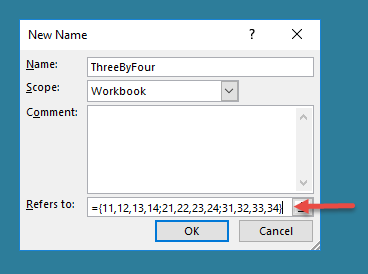
Fig 2: New Name - a 3 row by 4 column array constant named ThreeByFour
The range shown in figure 1 is named ThreeX4, and has been moved 3 columns to the right. The Name Manager view in figure 3 shows the details for the array name and array ThreeX4 constant ThreeByFour.
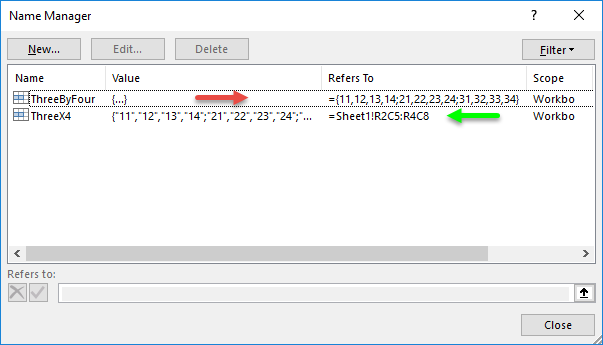
Fig 3: Name Manager Named array constant (red arrow), and named array (green arrow)- moved to column E (5) address R2C5:R4C8
3. Examples of WS array constants
3.1 WS SUBTOTAL function
Reference: Data analysis :: subtotals
Name: ListSubTotal
RefersTo: ={"average",101,1;"count",102,2;"counta",103,3;"max",104,4;"min",105,5;"product",106,6;"stdev",107,7;"stdevp",108,8;"sum",109,9;"var",110,10;"varp",111,11}

=SUBTOTAL(VLOOKUP(RC[-1],ListSubTotal,2,FALSE),Data) + N("Excludes hidden values")

Name: Stats5x1
RefersTo: ={"Average","StDev","Min","Max","Count"}
3.2 TAX table array constant
Reference: Arrays, and sub-arrays, with application to tax rates
Name: TaxArray1516
RefersTo: ={0,0,"0%";18201,0,"19.0%";37001,3572,"32.5%";80001,17547,"37.0%";180001,54547,"45.0%"}

=VLOOKUP(RC[-1],TaxArray1516,2,TRUE)
+(RC[-1]-VLOOKUP(RC[-1],TaxArray1516,1,TRUE)+1)
*VLOOKUP(RC[-1],TaxArray1516,3,TRUE)
- Development platform: Excel 2016 365 ProPlus 64-bit
- Workbook file: xlf-infile-notes-2.4.xlsx [13 KB]