
xlf | Clock macros
0. About Application.OnTime
Syntax Application.OnTime method:
Application.OnTime(EarliestTime, Procedure, LatestTime, Schedule)
| Parameters | Description |
|---|---|
| EarliestTime (required) | The time when the procedure is to be run |
| Procedure (required) | The name of the (sub) procedure to be run |
| LatestTime (optional) | If omitted the, the application will wait until the procedure can be run. If set, a procedure will not be run if both the EarliestTime and LatestTime have passed |
| Schedule (optional) | True (the default) to schedule a new procedure. False to clear set procedure |
Example 1: run the MyCode procedure at 6:15 pm - Application.OnTime TimeValue("18:15:00"), "MyCode"
Example 2: run the MyCode procedure in 30 seconds from now - Application.OnTime Now + TimeValue("00:00:30"), "MyCode". This example is similar to the Wait method
Syntax Application.Wait method: (not part of this module)
Application.Wait(Time)
Returns True if the specified time has arrived
| Parameters | Description |
|---|---|
| Time (required) | The time when the procedure is to resume |
Example 3: run the MyCode procedure in 30 seconds from now - If Application.Wait(Now + TimeValue("00:00:30")) Then Call MyCode
1. OnTime method :: the VBA code
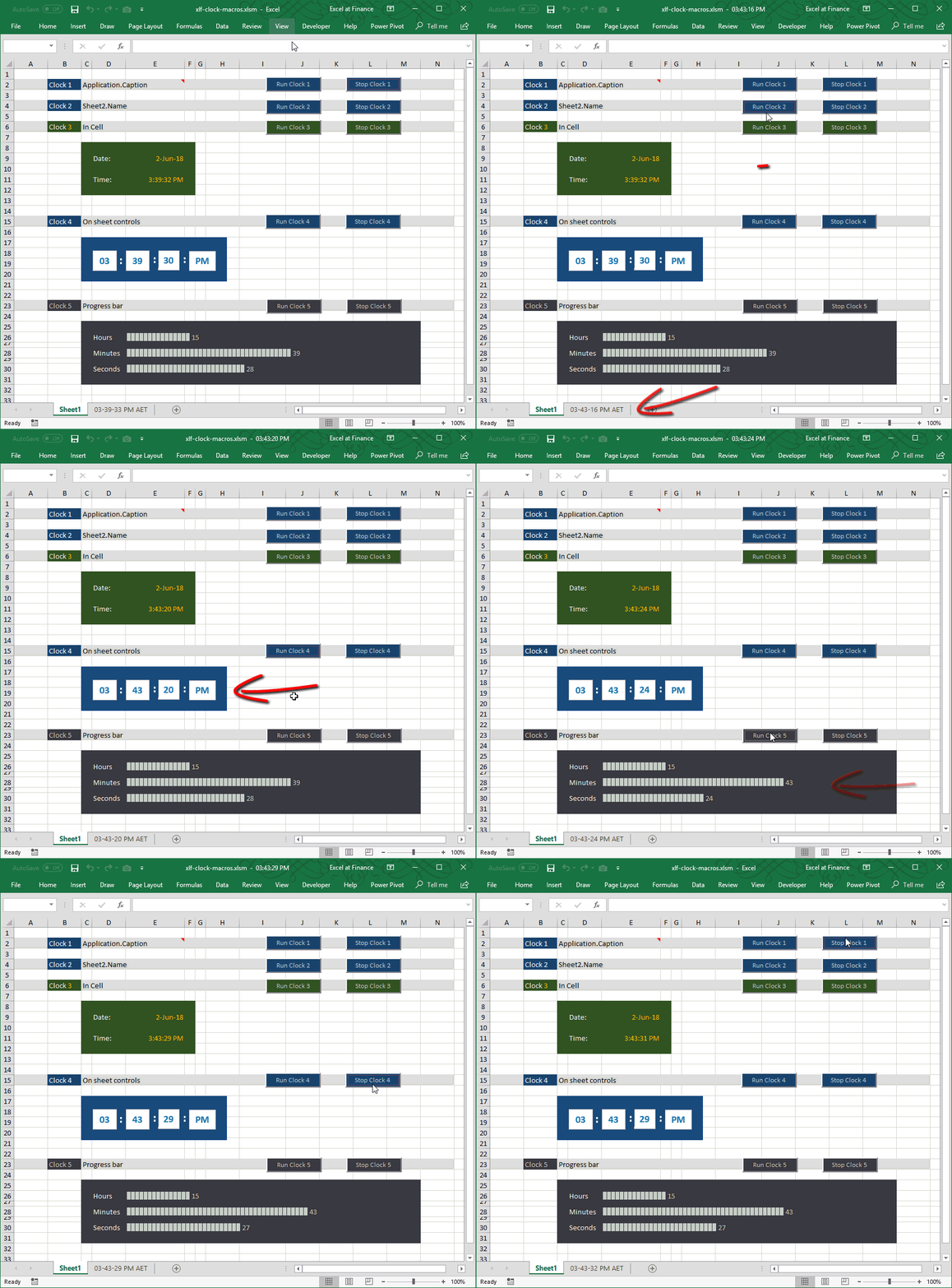
The following example use the Application.OnTime method to control a number of clock interfaces. Five examples are shown in figure 1, and the code is provided in sections 1.1 to 1.5. Procedures can be run and stopped from on-sheet ActiveX controls. The AppCap clock is also fired by the Workbook Open and BeforeClose events.
Each example includes three procedures:
- A
Clockprocedure linked to aClockTickprocedure. TheClockupdates the User Interface - A
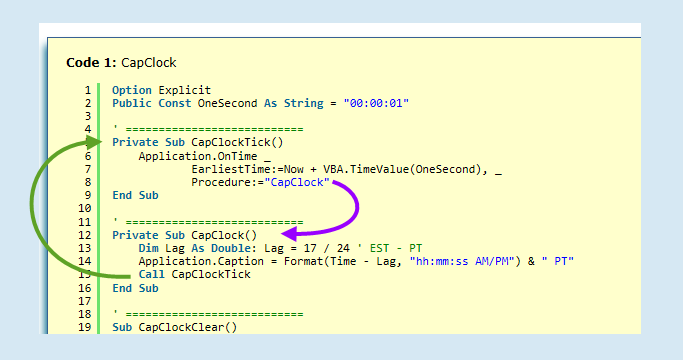
ClockTickprocedure linked to theClockprocedure. This runs theClockat regular intervals; one second time steps in this case. One second is the smallest time interval available in the VBA language environment. It is important to understand that theClockandClockTickhave a circular link and form a two procedure loop (see figure 2) - A
ClockClearprocedure to break the loop between the procedures in points 1 and 2.
1.1 Application.Caption
Adding a clock to the Application.Caption in code 1 line 7. The clock is updated at one second intervals as set by the Const OneSec As String = "00:00:01" in line 2 and EarliestTime:=Now + VBA.TimeValue(OneSec) in line 14.
Code 1: CapClock
add a digital clock to the Application.Caption
Option Explicit
Const OneSec As String = "00:00:01"

' ===========================
' Clock 1 :: CapClock
Private Sub CapClock()
    Application.Caption = Format(Time, "hh:mm:ss AM/PM")
    Call CapClockTick
End Sub

' ===========================
Private Sub CapClockTick()
    Application.OnTime _
            EarliestTime:=Now + VBA.TimeValue(OneSec), _
            Procedure:="CapClock"
End Sub

' ===========================
Sub CapClockClear()
    Application.Caption = vbNullString
    On Error Resume Next
    Application.OnTime _
        EarliestTime:=Now + VBA.TimeValue(OneSec), _
        Procedure:="CapClock", _
        Schedule:=False
End Sub
'
The loop between the Clock and ClockTick can be seen in figure 2. Both the Workbook Open event and the on-sheet control run the CapClock procedure. This avoids a one second initial lag if the loop started at CapClockTick point.
Selected Date and Time functions
| VBA function | Description |
|---|---|
| Date |
Returns the current system date Example: Date returns #3/06/2018# as type Date |
| DateValue(DateAsString) |
Returns a date from String Example: DateValue("3-June-2018") returns #3/06/2018# as type Date |
| Hour(Time) |
Returns the integer value for the hour 0 to 23 Example: Hour(TimeValue("8:27:28")) returns 8 as type Integer |
| Minute(Time) |
Returns the integer value for the minute 0 to 59 Example: Minute(TimeValue("8:27:28")) returns 27 as type Integer |
| Now |
Returns the current system date and time Example: Now returns #3/06/2018 8:27:28 AM# as type Date |
| Second(Time) |
Returns the integer value for the second 0 to 59 Example: Second(TimeValue("8:27:28")) returns 28 as type Integer |
| Time |
Returns the current system time Example: Time returns #8:27:28 AM# as type Date |
| Timer |
Returns the number of seconds since 12:00 AM on the current system time Example: Timer returns 30448.51 as type Single |
| TimeValue(TimeAsString) |
Returns a valid time from a String expression Example: TimeValue("8:27:28") returns #8:27:28 AM# as type Date |
1.2 Worksheet.Name
Adding a clock as a Worksheet name is unusual, and also makes subsequent code referring to the sheet by name virtually impossible. On occasions, the user may wish to add a new worksheet named with the date. The date however is less interesting when recording the example shown in figure 3.

The operation of the clock is identical in each of the following examples. All versions only differ with the target, where the time value is written to. In this example Code 2 Line 33 writes the time to a Worksheet tab Sheet2.Name = Format(Time, "hh-mm-ss AM/PM") & " AET". The colons used in line 7 are illegal characters with a Sheet name and "hh:mm:ss AM/PM" has been replaced with "hh-mm-ss AM/PM" format.
Code 2: Sub
TabClock procedure
' ===========================
' Clock 2 :: TabClock
Private Sub TabClock()
    Sheet2.Name = Format(Time, "hh-mm-ss AM/PM") & " AET"
    Call TabClockTick
End Sub

Private Sub TabClockTick()
    Application.OnTime _
        EarliestTime:=Now + VBA.TimeValue(OneSec), _
        Procedure:="TabClock"
End Sub

Sub TabClockClear()
    On Error Resume Next
    Application.OnTime _
        EarliestTime:=Now + VBA.TimeValue(OneSec), _
        Procedure:="TabClock", _
        Schedule:=False
End Sub
'
1.3 Range("Date") and Range("Time")

Code 3 lines 58 and 59 write the Date and Time components to their respective cells identified by range names. The VBA date #3/06/2018# is formatted as Text "03-Jun-18". Excel recognized the string as a date and applied the WS format Date: WS custom format d-mmm-yy date serial number. Truncation of the leading zero is caused by the Windows default short date settings? A similar process is applied to the Time component. On WS Time: WS custom format h:mm:ss AM/PM
Code 3: the
InCellClock procedure
' ===========================
' Clock 3 :: InCellClock
Sub InCellClock()
    Range("Date").Value = Format(Date, "dd-mmm-yy")
    Range("Time").Value = Format(Time, "hh:mm:ss AM/PM")
    Call InCellClockTick
End Sub

Sub InCellClockTick()
    Application.OnTime _
        EarliestTime:=Now + VBA.TimeValue(OneSec), _
        Procedure:="InCellClock"
End Sub

Sub InCellClockClear()
    On Error Resume Next
    Application.OnTime _
        EarliestTime:=Now + VBA.TimeValue(OneSec), _
        Procedure:="InCellClock", _
        Schedule:=False
End Sub
'
1.4 OnSheet clock

On sheet TextBox controls, are visible in rows 17 to 20 of figure 5
- Hours: name TextBox 2
- Minutes: name TextBox 3
- Seconds: name TextBox 4
- AM/PM: name TextBox 5
The TextBoxes are members of the Shapes collection, and though the object hierarchy are members of the TextFrame.Characters collection.
Code 4: the
OnSheetClock procedure
' ===========================
'Clock 4 :: OnSheetClock
Sub OnSheetClock()
    With Sheet1
        .Shapes("TextBox 2").TextFrame.Characters.Text = Left(Format(Time, "hh:mm:ss AM/PM"), 2)
        .Shapes("TextBox 3").TextFrame.Characters.Text = Right(Format(Time, "hh:mm"), 2)
        .Shapes("TextBox 4").TextFrame.Characters.Text = Format(Time, "ss")
        .Shapes("TextBox 5").TextFrame.Characters.Text = Format(Time, "AM/PM")
    End With
    Call OnSheetClockTick
End Sub

Sub OnSheetClockTick()
    Application.OnTime _
        EarliestTime:=Now + VBA.TimeValue(OneSec), _
        Procedure:="OnSheetClock"
End Sub

Sub OnSheetClockClear()
    On Error Resume Next
    Application.OnTime _
        EarliestTime:=Now + VBA.TimeValue(OneSec), _
        Procedure:="OnSheetClock", _
        Schedule:=False
End Sub
'
About Code 4
- Lines 84 to 86:
can also be written as:
.Shapes("TextBox 2").TextFrame.Characters.Text = Hour(Time) .Shapes("TextBox 3").TextFrame.Characters.Text = Minute(Time) .Shapes("TextBox 4").TextFrame.Characters.Text = Second(Time) - Without the leading zeros
1.5 ProgressBarClock
This is a variation of the in-cell clock described in section 1.3. The values are no longer Dates and Times but animated Text strings.

Selected Text functions
| VBA function | Description |
|---|---|
| ChrW |
Returns a string character from a valid 16 bit Unicode value Examples: Unicode 9609 ChrW(9609) returns ▉ as Text |
| String(Number As Long, Character) |
Returns a single string character repeated the Number of times Example: String(5, "a") returns aaaaa String(5, "abc") returns aaaaa String(5, 97) returns aaaaa String(5, "97") returns 99999 String(5, Chr(97)) returns aaaaa (Character ASCII) String(5, ChrW(97)) returns aaaaa (Character Unicode) String(5, ChrW(9679)) returns ●●●●● |
Code 5: the
ProgressBarClock procedure
' ===========================
'Clock 5 :: ProgressBarClock
Private Sub ProgressBarClock()
    Range("Hours").Value = _
        String(Format(Time, "hh"), ChrW(9609)) & " " & Format(Time, "hh")
    Range("Minutes").Value = _
        String(Right(Format(Time, "hh:mm"), 2), ChrW(9609)) & " " & Right(Format(Time, "hh:mm"), 2)
    Range("Seconds").Value = _
        String(Format(Time, "ss"), ChrW(9609)) & " " & Format(Time, "ss")
    Call ProgressBarClockTick
End Sub

Private Sub ProgressBarClockTick()
    Application.OnTime _
        EarliestTime:=Now + TimeValue(OneSec), _
        Procedure:="ProgressBarClock"
End Sub

Sub ProgressBarClockClear()
    On Error Resume Next
    Application.OnTime _
        EarliestTime:=Now + VBA.TimeValue(OneSec), _
        Procedure:="ProgressBarClock", _
        Schedule:=False
End Sub
'
About Code 5
The VBA String function is equivalent to the WS Rept function
- Lines 113 to 114: can also be written as:
Range("Hours").Value = _ Application.Rept(ChrW(9609), Hour(Time)) & " " & Hour(Time) - Without the leading zeros
2. Ancillary VBA code
2.1 ActiveX click events
Code 6:
Sheet1 Module ActiveX CommandButton Click event procedures
 Option Explicit
' All called procedures are Private

' ===========================
' Clock 1 :: CapClock
Private Sub cmdClock1_Click()
    Application.Run "xlfTime.CapClock"
End Sub

Private Sub cmdStop1_Click()
    Application.Run "xlfTime.CapClockClear"
End Sub

' ===========================
' Clock 2 :: TabClock
Private Sub cmdClock2_Click()
    Application.Run "xlfTime.TabClock"
End Sub

Private Sub cmdStop2_Click()
    Application.Run "xlfTime.TabClockClear"
End Sub

' ===========================
' Clock 3 :: InCellClock
Private Sub cmdClock3_Click()
    Application.Run "xlfTime.InCellClock"
End Sub

Private Sub cmdStop3_Click()
    Application.Run "xlfTime.InCellClockClear"
End Sub

' ===========================
'Clock 4 :: OnSheetClock
Private Sub cmdClock4_Click()
    Application.Run "xlfTime.OnSheetClock"
End Sub

Private Sub cmdStop4_Click()
    Application.Run "xlfTime.OnSheetClockClear"
End Sub

' ===========================
'Clock 5 :: ProgressBarClock
Private Sub cmdClock5_Click()
    Application.Run "xlfTime.ProgressBarClock"
End Sub

Private Sub cmdStop5_Click()
    Application.Run "xlfTime.ProgressBarClockClear"
End Sub
'
2.2 ThisWorkbook events
Code 7: the
ThisWorkbook Module procedures
Option Explicit

' ===========================
' Clock 1 :: CapClock
Private Sub Workbook_Open()
    Application.Run "xlfTime.CapClock"      ' call a private procedure
End Sub

Private Sub Workbook_BeforeClose(Cancel As Boolean)
    Call CapClockClear                      ' call a public procedure
End Sub
'
- Download the Excel file for this module: xlf-clock-macros.xlsm [57 KB]
- Development platform: Excel 2016 (64 bit) Office 365 ProPlus and VBA 7.1
- Published: 1st June 2018
- Revised: Friday 24th of February 2023 - 02:38 PM, Pacific Time (PT)