
box Cancel button coding
1. Coding the Excel message box cancel button
The message box MsgBox function provides customization of the buttons by allowing selection from a predefined set of 6 items, each identified by a constant (value): vbOKOnly (0), vbOKCancel (1), vbAbortRetryIgnore (2), vbYesNoCancel (3), vbYesNo (4), and vbRetryCancel (5).
Return values are also specified by constants, with the values shown in brackets: vbOK (1), vbCancel (2), vbAbort (3), vbRetry (4), vbIgnore (5), vbYes (6), and vbNo (7). Suppose that the user has specified vbYesNoCancel as the message box button combination, when the user clicks the Cancel button, the integer 2 is returned, and this value is represented the constant vbCancel. Note that the MsgBox Cancel button returned vbCancel.
In the example shown in code 1, the Cancel button click event means that the value of vbCancel is assigned to the MBButton variable (line 7). The the logical test returns MBButton=vbCancel=True in code line 8. Pressing the ESC key has the same effect as clicking Cancel.
Code 1: Coding the Cancel button on an message box - MsgBox function.
Sub MBCancel()
'' Message box Cancel demonstration
Dim MBButton As Integer
Dim MBPrompt As String
    MBPrompt = "PRESS: " & vbNewLine & "YES to continue; NO to Restart, or CANCEL to Exit"
    '' more code goes here
    MBButton = MsgBox(MBPrompt, vbYesNoCancel, "xlfStar APP")
    If MBButton = vbCancel Then
        Debug.Print "xlfSTAR ============================"
        Debug.Print "MBButton value: " & MBButton
        Debug.Print "vbCancel value: " & vbCancel
        Debug.Print "MB Cancel button pressed at " & Time & vbNewLine
        Exit Sub
    End If
    '' more code goes here
End Sub
2. Coding the Excel input box method cancel button
In contrast, the Excel InputBox Application.InputBox method offers no facility for customization of the box buttons. There is only an OK button and a Cancel button. The InputBox method has an optional Type parameter that specifies the return data type. There are 8 different values that can be passed in the Type parameter: 1 (a Formula), 2 (a Number), 4 (a Logical value - true or false), 8 (a Cell reference as a Range object), 16 (an Error value), and 64 (an Array of values). Each of the different Types will be demonstrated in the following code windows 2 to 9.
According to the syntax for the InputBox method, the Cancel button returns False when clicked.
xlf Note: [OK] with blank input
Pressing the OK button with blank input returns an alert message (figure 1), in the case of type 0 (formula) and 1 (number). A type 2 (text) is the default and thus able to handle the "" from the blank.
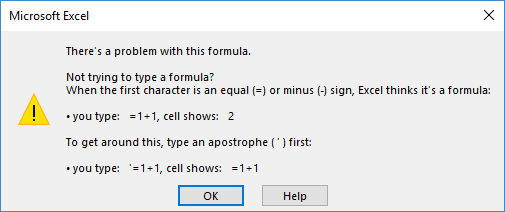
Use the Application DisplayAlerts property to suppress the WS alert, see code 2 line 8.
Code 2: InputBox method - DisplayAlert coding
Sub IBblankOK()
'' InputBox method Cancel type 0 - a Formula
Dim IBdata As String
Dim Ans As Double
Dim IBPrompt As String
    IBPrompt = "Enter value " & vbNewLine & "Press OK to continue; or CANCEL to Exit"
    '' more code goes here
    Application.DisplayAlerts = False                           '' suppress WS error alerts
    IBdata = Application.InputBox(Prompt:=IBPrompt, _
                                  Title:="xlfStar APP", _
                                  Type:=1)
    If Left(IBdata, 1) <> "=" Then
       If IBdata = False Then
            Debug.Print "starXLF ============================"
            Debug.Print "IB Cancel button pressed at " & Time & vbNewLine
            Exit Sub
        End If
    End If
    Ans = Evaluate(IBdata)
    '' more code goes here
    Application.DisplayAlerts = True                            '' restore WS error alerts
End Sub
2.1 xlf Type 0
The example in code 2 (a), allows the user to enter a formula as shown by the Type 0 parameter. The Cancel button code is in line 13.
If a valid formula is entered, however, such as the default parameter with the log transformation in line 10, then the code in line 13 will fail due to a type mismatch. The IBdata variable is type text, whereas False is of the type Boolean. To solve this issue, the code in line 13 is only executed if the content of IBdata is not a formula. The existence of a formula is determined in line 12, by checking if the first character in IBdata is an equals sign, because a formula always starts with =.
To calculate the return value for the formula, we use the Application Evaluate method in line 19. Evaluate("=LN(1.2 / 1.1)") returns 8.70113769896297E-02 to the Ans variable.
Code 2 (a): InputBox method - type 0 - Cancel button coding
Sub IBCancel_0()
'' InputBox method Cancel type 0 - a Formula
Dim IBdata As String
Dim Ans As Double
Dim IBPrompt As String
    IBPrompt = "Enter value " & vbNewLine & "Press OK to continue; or CANCEL to Exit"
    '' more code goes here
    IBdata = Application.InputBox(Prompt:=IBPrompt, _
                                  Title:="xlfStar APP", _
                                  Default:="=LN(1.2 / 1.1)", _
                                  Type:=0)
    If Left(IBdata, 1) <> "=" Then
       If IBdata = False Then
            Debug.Print "starXLF ============================"
            Debug.Print "IB Cancel button pressed at " & Time & vbNewLine
            Exit Sub
        End If
    End If
    Ans = Evaluate(IBdata)
    '' more code goes here
End Sub
2.2 xlf Type 1
In business spreadsheets, the Application.InputBox method is most often used with a number, text, or range type parameter. These section are shown by the border marker on the left " ". Code 3 (a) has a type 1 allowing entry of a number. The IBdata variable is of the type double, and the cancel button code is in line 11. In this case, the number value in IBdata, and the value 0 for False will not cause a Type mismatch. When Cancel is pressed, IBdata contains the default value 0, and 0=False=True. A problem occur if the User enters the value 0. This would cause a incorrect return value of False. The correction for a 0 entry is shown in code 3 (b).
Code 3 (a): InputBox method - type 1 - Cancel button coding
Sub IBCancel_1a()
'' InputBox method Cancel type 1 - a Number
Dim IBdata As Double
Dim IBPrompt As String
    IBPrompt = "Enter value " & vbNewLine & "Press OK to continue; or CANCEL to Exit"
    '' more code goes here
    IBdata = Application.InputBox(Prompt:=IBPrompt, _
                                  Title:="xlfStar APP", _
                                  Default:=123.45, _
                                  Type:=1)
    If IBdata = False Then
        Debug.Print "starXLF ============================"
            Debug.Print "IB Cancel button pressed at " & Time & vbNewLine
        Exit Sub
    End If
    '' more code goes here
End Sub
To allow for the 0 value, we change the IBdata type to Variant in code 3 (b) line 3. If a 0 is entered, then IBdata will be a Variant/Double type with value 0. If Cancel is pressed, then IBdata will be a Variant/Boolean type with value False (equal to zero). Thus line 11 includes: If IBdata = False And TypeName(IBdata) = "Boolean" Then to handle the Cancel button for a parameter type 1.
Code 3 (b): InputBox method - type 1 - Cancel button coding
Sub IBCancel_1b()
'' InputBox method Cancel type 1 - a Number
Dim IBdata As Variant
Dim IBPrompt As String
    IBPrompt = "Enter value " & vbNewLine & "Press OK to continue; or CANCEL to Exit"
    '' more code goes here
    IBdata = Application.InputBox(Prompt:=IBPrompt, _
                                  Title:="xlfStar APP", _
                                  Default:=123.45, _
                                  Type:=1)
    If IBdata = False And TypeName(IBdata) = "Boolean" Then
        Debug.Print "starXLF ============================"
        Debug.Print "IB Cancel button pressed at " & Time & vbNewLine
        Exit Sub
    End If
    '' more code goes here
End Sub
