8.1 Functions: built-in and custom
Excel's function library and the VBA interface
- Excel 365 has approximately 480 built in WS functions list
- WS functions are segmented into categories: Financial, Logical, Text, Date & Time, Lookup & Reference, …
- Custom WS functions are included in the Excel User Defined functions (UDF) category and are often referred to as UDFs
- The WorksheetFunction object is a container for all Excel built in WS functions
- To use a WS built in function in VBA, look at the following example using the WS LN function
' Application.WorksheetFunction returns the WorksheetFunction object ' There are three common techniques - often considered to be equivalent a3 = Application.WorksheetFunction.Ln(12 / 11) ' returns 8.70113769896297E-02 a4 = WorksheetFunction.Ln(12 / 11) ' returns 8.70113769896297E-02 a5 = Application.Ln(12 / 11) ' returns 8.70113769896297E-02- Code lines 3 and 4 both display the VBA Auto List members. Figure 1 shows the Auto List drop down for lines 3, and 4. Line 5 relies on the analysts own knowledge. Auto Lists can make code writing easier. Code line 4 has the advantage of Auto List, with less code writing, and is marked with the green tick (in figure 10 to indicate the preference.

Fig 1: Application.WorksheetFunction. [Top]; WorksheetFunction. [Centre]; and Application. [Bottom] - WS functions must always include the brackets () for the arguments, even if empty
- When WS functions with dots in the name are used in VBA, the dot must be replaced by an underscore character. For example: WS
=Norm.S.Inv(Rand())is written in VBA as:= WorksheetFunction.Norm_S_Inv(Rnd())
VBA functions
- VBA has its own set if built in functions. Here is an example of a VBA function that returns the natural logarithm of a number
' VBA.Log(number) returns the number to base e (natural log) a12 = VBA.Log(12 / 11) ' returns 8.70113769896297E-02, or a13 = Log(12 / 11) ' WSF.Log(number,base) a14 = WorksheetFunction.Log(12 / 11, VBA.Exp(1)) ' returns 8.70113769896297E-02 - VBA 7.1 has approximately 112 built in functions
- VBA functions appear on the Member List drop down as Methods of the VBA object if preceded with VBA.

Fig 2: VBA. "List Members" [Top]; and VBA.function "Quick Info" [Bottom]
Custom UDFs - an introduction
- A function takes an input (called an argument), performs some process such as calculation, and returns an answer (called the return value)
- Function input(s) should always be passed via the argument(s)
- Function output should always be passed via the function name as the return value
- User defined functions are so called because they are listed in the User Defined group of the Function Arguments dialog box
- UDFs are normally written in an ordinary code module:
- The first line of a function procedure is the declaration line. Syntax:
Function Name(Arg1, Arg2, … ) - Other code statements are in the body of the function. The return value must be assigned to the function name
- The procedure ends on the last line with the
End Functionstatement - Here is a simple function named NumSquared that returns the square of a number
' Function statement Function NumSquared(Num as Double) as Double ' First line :: declaration and arguments NumSquared = Num ^ 2 ' Calculation engine & return value End Function ' Last line - The WS Insert Function, and Function Arguments dialog boxes, plus function List Members drop down are displayed in figure 3
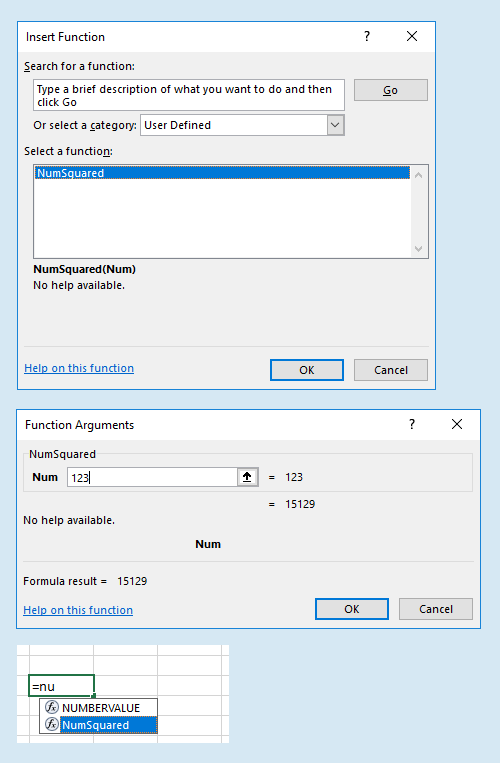
Fig 3: Insert Function dialog box with Category: User Defined showing the function in the Select a function list [Top]; WS Function Arguments dialog [Centre] ; WS function "List Members" drop down [Bottom] - Custom functions can be called from VBA macros
' Call the NumSquared function
Sub TestNumSquared()
Dim ans as Double
    and = NumSquared(9) ' returns 81
End Sub
- Revised: Saturday 25th of February 2023 - 09:37 AM, [Australian Eastern Time (AET)]