The Task
0. Background
An analyst has developed an Excel user interface that includes a number of on-sheet controls.
Several problems occurred when the worksheet and controls were copied from the source workbook (file 1) to the target, a new workbook (file 2). It seems that the VBA code for the controls was in an ordinary code module in the source file, and was then copied to the sheet module in the target workbook.
1. The project
The main objective of the project is to modify the interface from the target file, shown in the top section of figure 1, and develop the two final versions shown in the lower section of figure 1. Additional functionality is also required in the box sequence code. The final workbook should be stand alone and not rely on links to the source workbook.
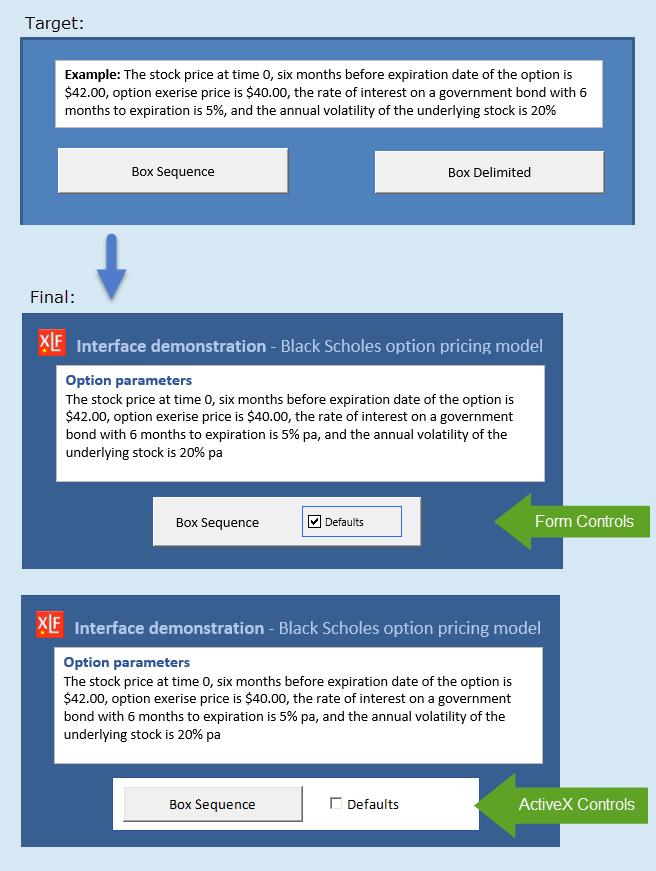
Files used in this module:
File 1: the source file – xlf-box-sequence-source.xlsm [33 KB]
File 2: the target file – xlf-box-sequence-target.xlsm [22 KB]
Required
- Download the source and target files and save them to the same folder
- Open the target file file and identify the problems raised by the copy techniques described above. Resolve the problems you have identified
- Update the interface to incorporate the modifications (features and controls) illustrated in Form Controls version in figure 1 and described in the specifications section below
- Create a duplicate copy of the interface on the same worksheet and incorporate the modifications (features and controls) illustrated in ActiveX Controls version
Specifications
- The source → target interface consists of four items:
- Shapes > Rectangle; Name: Rectangle 1; Format > Shape Fill > More Fill Colors … > RGB(55,95,145)
- Shapes > TextBox; Name: TextBox 1; Home > Fill Color > More Colors … > Custom > RGB(55,95,145)
- Button (Form Control); Name: Button 1
- Button (Form Control); Name: Button 2
- Setup the six items shown in the Form Controls Final version, and the seven items in the ActiveX Controls Final version (figure 1)
- The xlf image is a link to http://excelatfinance.com/online/wp-content/uploads/2015/06/xlf.png
- The title: Interface demonstration … is a Shapes > TextBox item. Apply the Name: TextBox 2
- Form Controls:
- Button (Form Control); Name: Button 1
- Check Box (Form Control); Name: Check Box 1
- ActiveX Controls:
- Shapes > Rectangle; Name: Rectangle 2
- Command Button (ActiveX Control); Name: CommandButton1
- CheckBox (ActiveX Control); Name: CheckBox1
- [Sheet2(Code)]
- BSCallOptBoxes procedure
- Include the
Switch as Booleanitem as a compulsory argument - Display a message box if the user enters a non positive number in steps 1 to 5
- Code the Cancel button for Steps 2 to 5 to return to the previous step
- Display the value entered in the previous step as the default, even if the preset Defaults switch is False
- Include the
- Add procedures for the:
- Form Controls – Button
- ActiveX Controls – Command Button, and
- ActiveX Controls – CheckBox
- BSCallOptBoxes procedure
format(‘U’) < $release->format(‘U’) ) {
echo “The solution link (task 1) will open at ” . $release->format(‘g:i a \o\n l jS F Y’) . “ – [Australian Eastern Time (AET)] “;
}
else
{
echo “
“;
echo ‘
‘;
}
?>